 , fast delivery, and backed by our world-class customer service every step of the way.
  1-800-881-6093
 Back
Back
How to Vectorize a Logo With AI, Illustrator or Inkscape: A Tested Guide
To vectorize a logo, you turn a picture made of pixels into a file made of shapes, so it prints sharp at any size. You have more ways to do that than ever: AI vectorizers that do it in seconds, AI assistants like ChatGPT and Claude that can now write and run their own tracing code, and the classic tools, Adobe Illustrator and the free Inkscape.
The hard part is reliability. Any of these can hand you a file that ends in .svg. Far fewer hand you one a printer can use without fixing it first. So we tested the methods on a deliberately bad logo, a 300-pixel JPEG of the kind most small brands actually have, and measured every result against the original artwork. This guide covers what worked, why it worked, and exactly how to do it yourself, whether you write code every day or have never opened a design app.
TL;DR:
- A vector logo is drawn from shapes and math, so it stays sharp at any size. A PNG or JPG is a grid of pixels and blurs when you enlarge it.
- Tracing a low-quality file directly gives you a mess: our straight trace of a 300-pixel JPEG produced 145 shapes in 144 different colors.
- The reliable recipe is the same in every tool: enlarge and clean the image, lock it to your exact brand colors, trace it, rebuild the text and simple shapes, then check the result against the original.
- That recipe took the same JPEG to 12 shapes in the exact brand colors with a 99.4% match. Rebuilding the wordmark from the real font file got it to 3 shapes and a 99.7% match.
- AI vectorizers such as Vectorizer.AI, Recraft and Vector Magic are fastest for simple marks. ChatGPT and Claude can run the whole recipe in Python, provided you tell them exactly what to do and ask them to prove the result.
- Before you print: outline the text, set exact CMYK or Pantone colors, delete the background, and make sure no pixel image is hiding inside the vector file.
Table of Contents
- What does it mean to vectorize a logo?
- Do you already have a vector file?
- We tested four ways to vectorize a bad logo
- Why tracing a low-quality logo directly fails
- The reliable method, step by step
- How to vectorize a logo with an AI vectorizer
- How to vectorize a logo with ChatGPT or Claude
- What the AI is actually doing: the Python behind it
- How to vectorize a logo in Adobe Illustrator
- How to vectorize a logo in Inkscape for free
- When should you hire a pro?
- Getting the file ready for print
- Which method should you use?
- Already have your artwork? We take it from here
- FAQ
- Sources
What does it mean to vectorize a logo?
Image files come in two kinds.
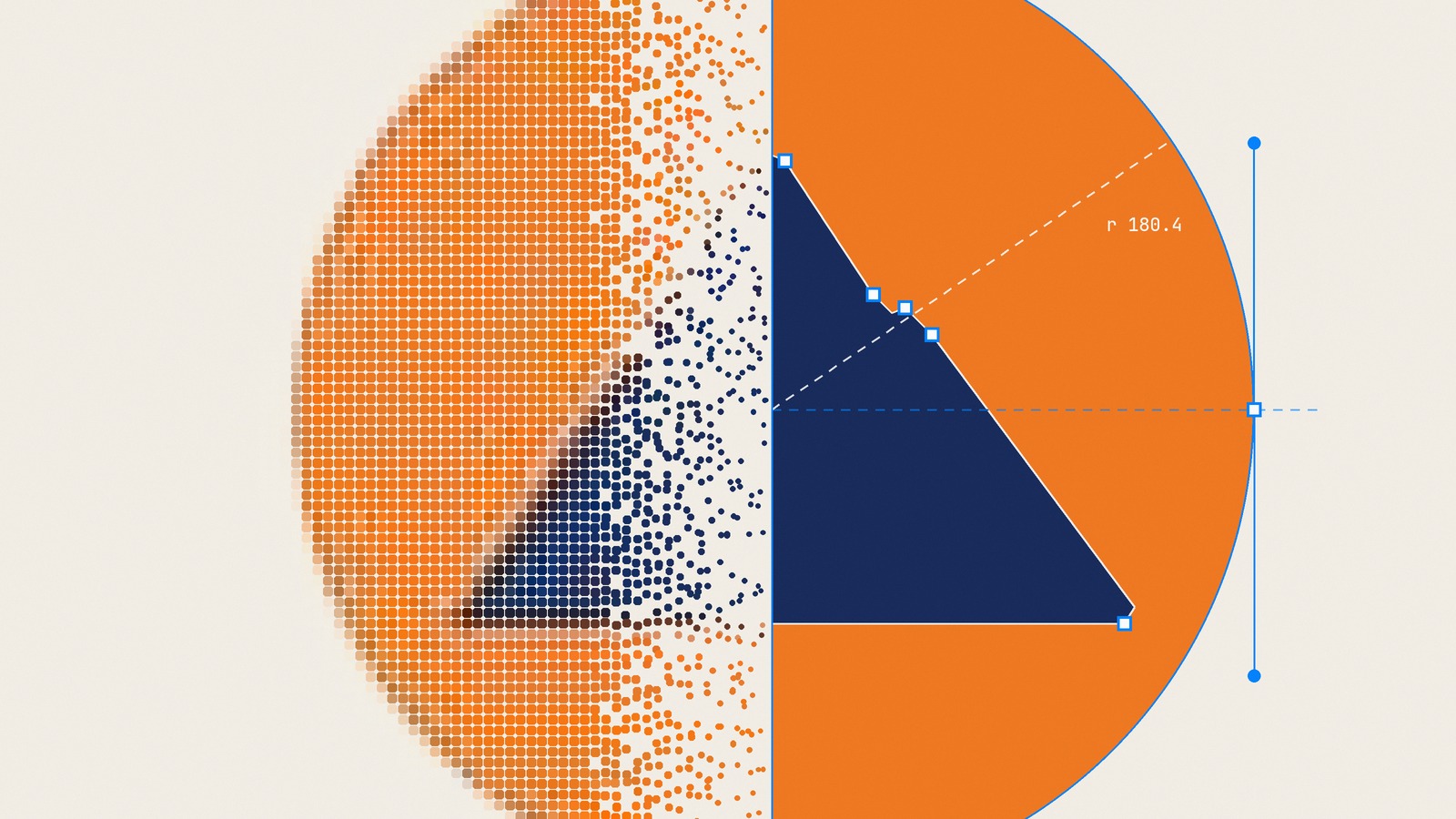
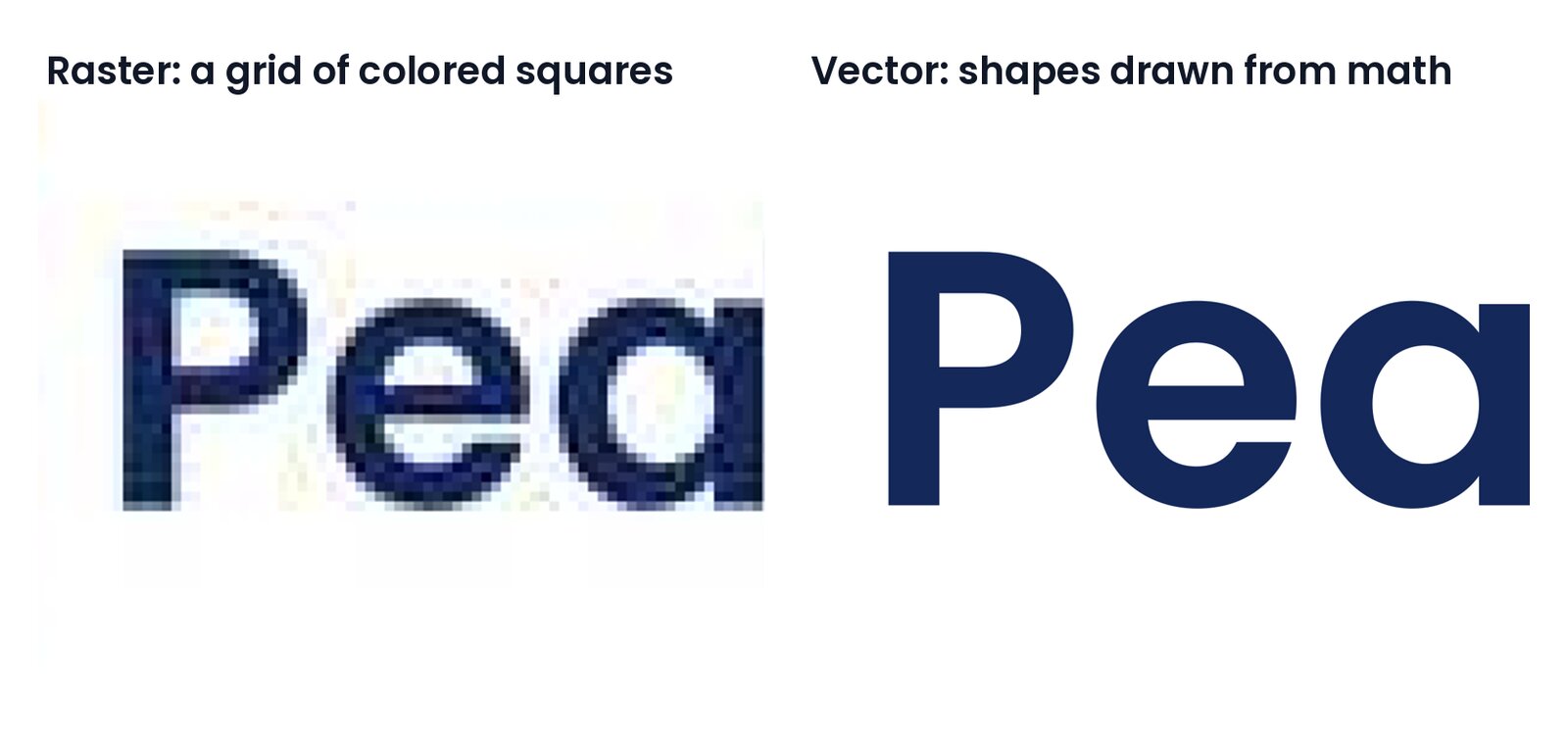
A raster image is a grid of tiny colored squares called pixels, like a mosaic. PNG, JPG, GIF, WebP, TIFF and Photoshop files are raster. Up close, or printed large, the squares show and the edges go soft.
A vector image is a set of drawing instructions: "a circle this wide, at this spot, filled with this orange." The printer redraws those instructions at whatever size it needs, so the edges stay crisp on a business card or a billboard. AI (Illustrator), EPS, PDF and SVG files can all hold vector artwork.
Vectorizing means rebuilding a raster logo as vector instructions. A tool looks at the pixels, works out where the edges of each colored shape are, and describes those edges as smooth curves.
| Kind | File types | Best for |
|---|---|---|
| Raster (pixels) | PNG, JPG, GIF, WebP, TIFF, PSD | Photos, websites, social media |
| Vector (shapes) | AI, EPS, PDF, SVG | Logos, packaging, signs, anything cut or printed large |
One warning before you go further. A file can have a vector extension and still be a raster underneath. Renaming logo.png to logo.svg changes nothing, and many online converters return an SVG that simply wraps the original pixels. Three quick ways to tell:
- Zoom in to 800% or more. Vector edges stay perfectly sharp. Raster edges turn into steps or blur.
- In Illustrator, switch to Outline view (View > Outline). Real vector artwork shows as thin outlines. An embedded picture shows as a box with an X through it.
- Open an SVG in a text editor. If you see an
<image>tag followed by a long run of random characters, the file is a picture wrapped in an SVG, not a vector.
If your file fails any of these checks, treat it as a raster and keep reading.
Do you already have a vector file?
Before you trace anything, spend five minutes looking. A real vector file from whoever designed the logo beats any trace.
- Ask the designer who made it, or the agency, freelancer or friend. Ask for the "original AI, EPS or PDF file."
- Ask the last printer you used. Printers keep artwork on file. At Packwire we store it for at least five years.
- Check your own website. Many sites use an SVG logo. Right-click the logo, open the image in a new tab, and if the address ends in .svg, save it. Then run the text-editor check above to make sure it isn't a wrapped picture.
- Check the tool it was made in. If the logo was made in an online design tool, look at its download options. Some offer SVG or PDF export.
If none of that turns anything up, it's time to vectorize.
We tested four ways to vectorize a bad logo
To see which methods hold up, we made a simple two-color logo for a made-up brand, Peakfield: an orange circle, a navy mountain and a wordmark set in the Poppins SemiBold typeface. Then we shrank it to 300 by 125 pixels and saved it as a low-quality JPEG, which is roughly what most small brands find when they go looking for their logo in an old email or on their website.
We vectorized that JPEG four ways and compared each result with the original artwork, pixel by pixel.
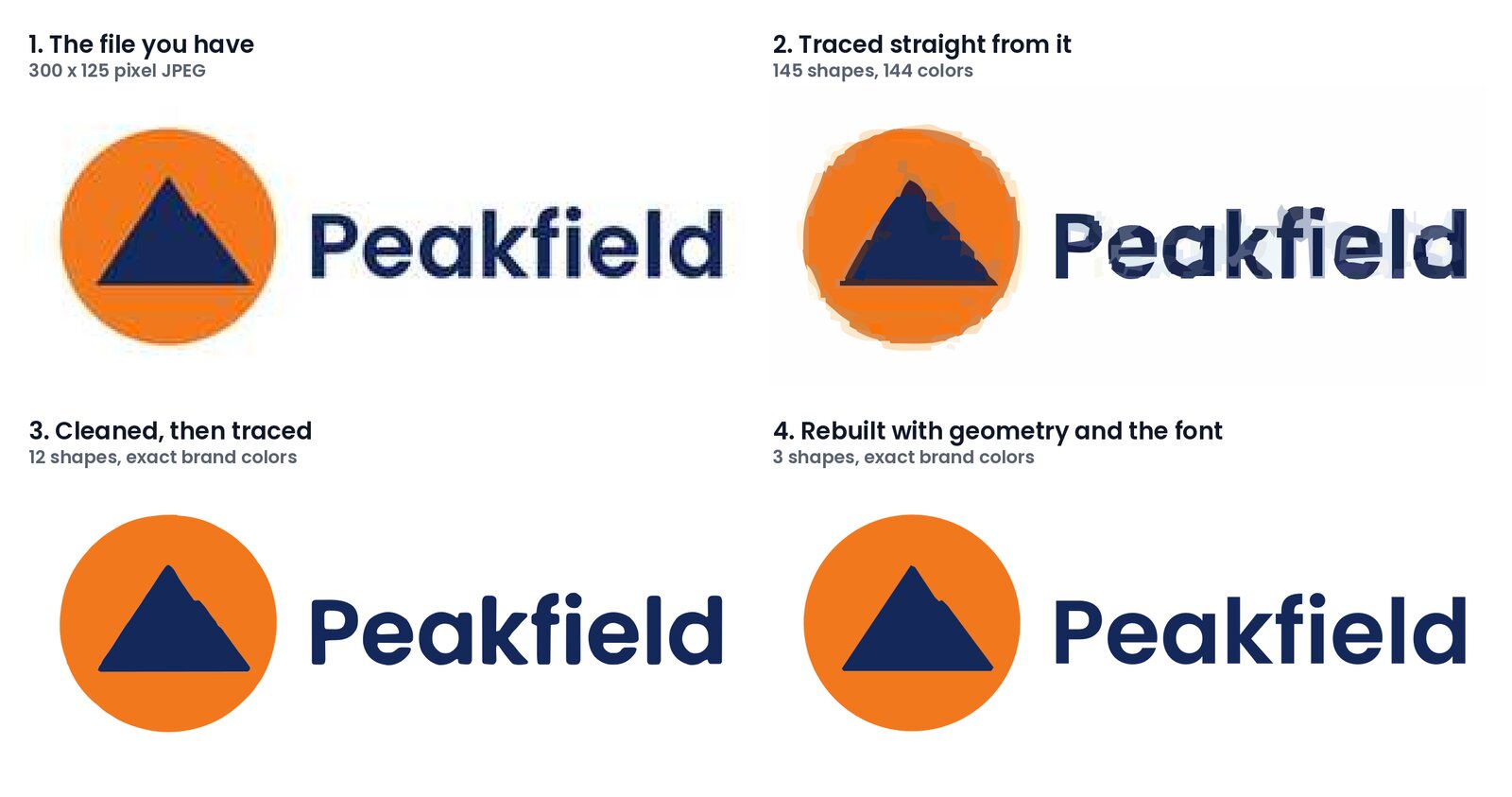
| Method | Shapes in the file | Colors in the file | Match with the original artwork |
|---|---|---|---|
| Traced straight from the JPEG | 145 | 144 | 98.5% |
| Cleaned, locked to brand colors, then traced | 12 | 2 | 99.4% |
| Rebuilt from geometry and the real font | 3 | 2 | 99.7% |
The two cleaned-up versions have no background shape, which is how a print file should be, so they show two colors: the orange and the navy.
A 98.5% match sounds close. Zoom in and it isn't.
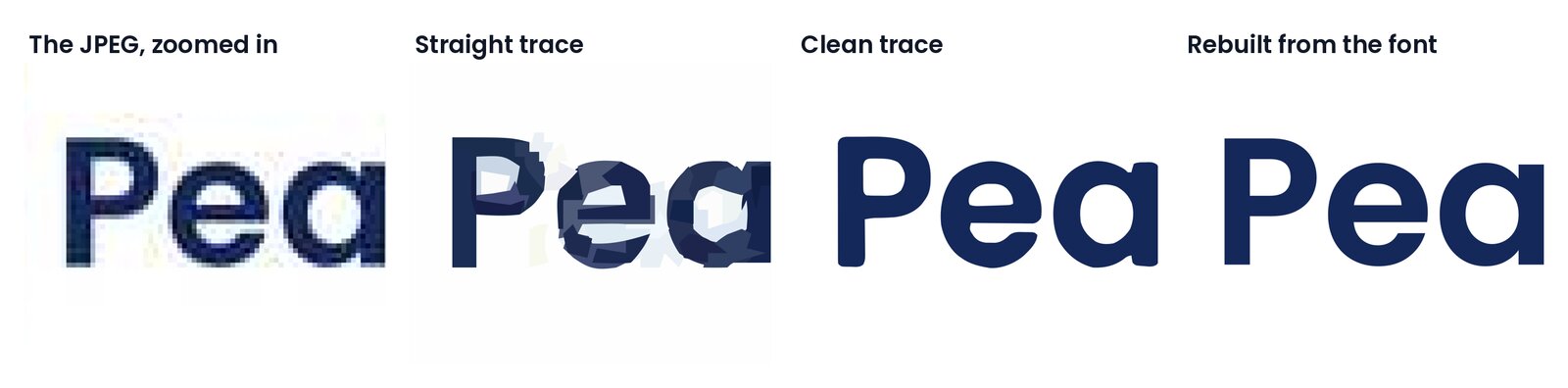
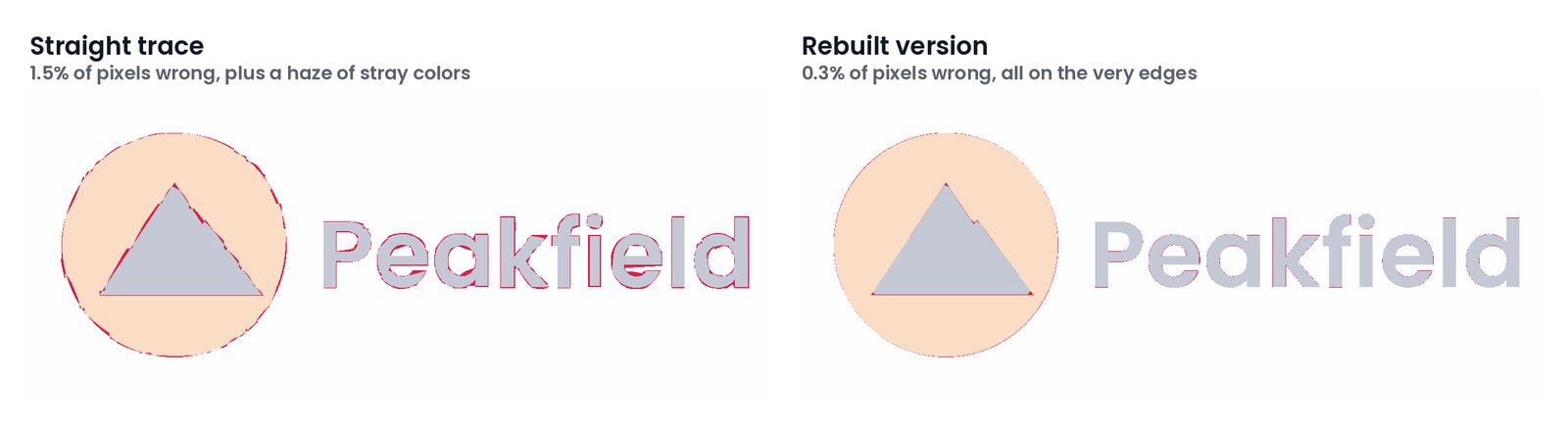
The straight trace turned every speck of JPEG noise into its own shape and its own color. A printer would have to rebuild it. The cleaned trace is smooth and uses exactly two colors, but look at the mountain: the tiny second peak and the sharp corners were already lost in the 300-pixel file, and no tracer can recover detail that isn't in the pixels. The rebuilt version gets them back because the circle, the mountain and the text were redrawn as exact shapes rather than traced.
That gap between "98.5% of pixels match" and "a printer could use this" is the whole story of vectorizing reliably. The rest of this guide is about closing it.
Why tracing a low-quality logo directly fails
Three things in a typical logo file confuse a tracer:
- Soft edges. To look smooth on screen, the pixels along an edge blend the two colors on either side. A navy letter on white has a fringe of in-between blues. A tracer sees those as extra colors and draws extra shapes for them.
- JPEG noise. JPEG saves space by approximating small blocks of the image. That leaves blotches and speckles, especially around text, and each one becomes a tiny shape.
- Missing detail. At 300 pixels wide, a thin line might be one pixel thick, and a sharp corner might be three pixels. The tracer can only follow what's there, so corners round off and small details vanish.
Experienced vector artists know this well. Vector Factory's guidance on manual versus automatic work says automated tools often fall short of production-grade results, which is why manual rebuilding is the usual fix.
Autotracing is a starting point: production-grade logos are often rebuilt by hand for clean, editable paths.
The good news is that each of these problems has a specific fix, and the fixes are the same whether you click buttons in Illustrator or ask an AI to run code.
The reliable method, step by step
Every reliable workflow we tested follows these seven steps. The tools change. The steps don't.
1. Start from the biggest, cleanest file you can find
Twice the pixels means far less guessing. A 2,000-pixel PNG from your website beats a 300-pixel JPEG from an email signature, and a PNG beats a JPG because PNG doesn't add compression noise. If you only have a phone photo of a printed logo, shoot it flat, in daylight, filling the frame.
2. Enlarge it and smooth out the noise
Enlarge the image to about four times its size before tracing. That gives the tracer more room to place smooth curves between the pixels. Then apply a gentle "edge-preserving" blur, which smooths the blotches inside each colored area while keeping the edges between areas sharp.
3. Lock every pixel to your exact brand colors
This is the step most people skip, and it does the most good. Decide how many colors your logo really has, then force every pixel to the nearest one. The fringe of in-between blues becomes either navy or white, with nothing in between, and the tracer draws one clean shape per color.
Use your real brand colors here, as hex codes from your brand guidelines, your website's stylesheet, or your designer. Measuring them from a JPEG gets them slightly wrong, as our test showed:
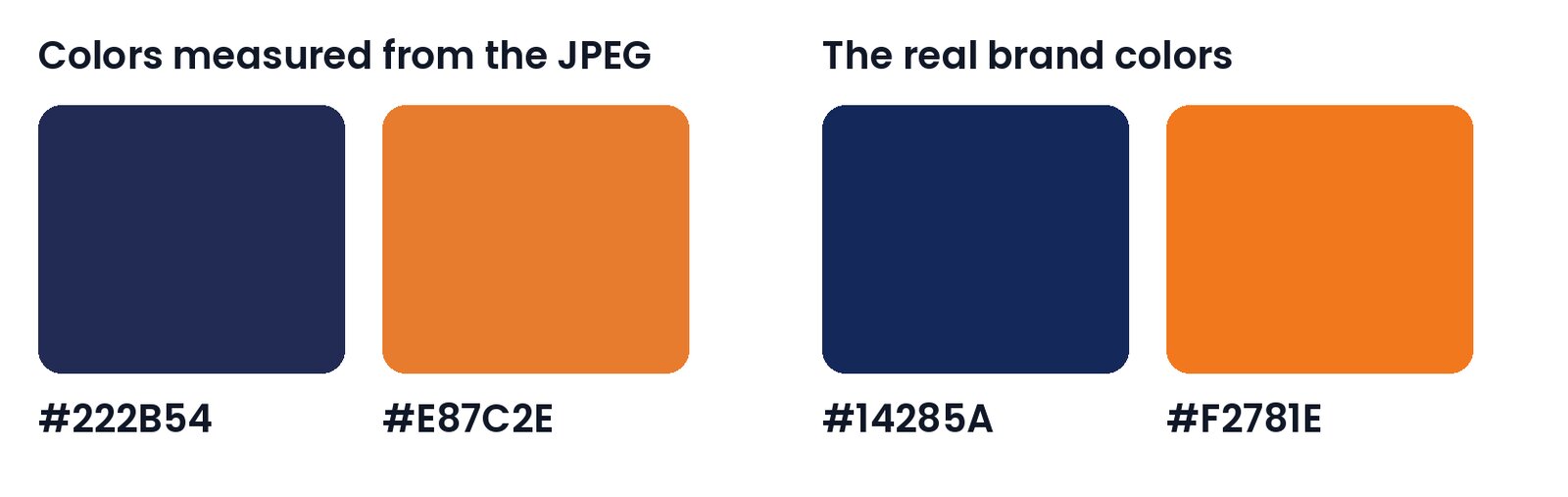
Both measured colors are close, and both would be visibly off on a printed box next to your website.
4. Trace it
Now the tracer has an easy job: a few flat areas of exact color with clean borders. Two settings matter most:
- Speckle size. Tell the tracer to ignore any shape smaller than a few pixels, so leftover dust doesn't become artwork.
- Cutout versus stacked shapes. A tracer can either cut holes where holes belong, like the inside of an "o," or lay a white shape on top to fake the hole. Faked holes look fine on a white background. Delete the background for printing on kraft or colored board and they fill in solid.
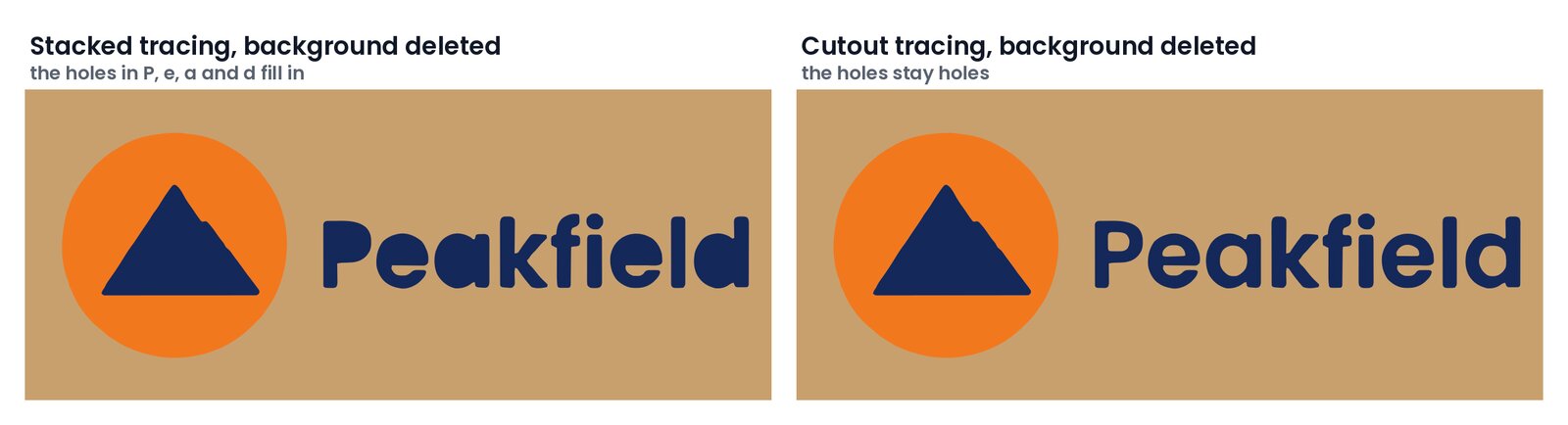
In Illustrator this setting is called Abutting (real holes) versus Overlapping. In the VTracer library it's "cutout" versus "stacked." Choose real holes.
5. Rebuild what you can instead of tracing it
Tracing is the right tool for organic shapes, like a hand-drawn leaf or a mascot. It's the wrong tool for anything that was drawn with exact geometry or typed in a font.
- Text: find the typeface, type the name again in that font, and convert the letters to outlines. You get the designer's original letterforms, perfectly smooth, instead of a lumpy copy. If you don't know the font, ask whoever designed the logo, or try WhatTheFont or Font Squirrel's Matcherator. AI assistants can suggest fonts too, but they guess wrong often enough that you should check by overlaying the new text on the old.
- Circles, squares and straight lines: redraw them as true circles and straight edges, matched to the traced size and position.
In our test, rebuilding raised the match from 99.4% to 99.7% and cut the file from 12 shapes to 3. More important, the letters are the actual Poppins letters, and the circle is an actual circle.
6. Check the result against the original
Never trust a vector file you haven't checked. Put the original image underneath the vector at half opacity and look for edges that drift. Zoom to 100% to see it at normal size, then to 400% or more to see the curves. This printing quality control checklist covers the wider pre-print routine. Specifically, look for:
- Stray specks and tiny shapes
- Wobbly edges on things that should be straight
- Letters that look slightly different from the font
- Holes that filled in when the background was removed
- Colors that aren't exactly your brand colors
If an AI assistant does the work, it can run this check for you: draw the vector back out as pixels and mark every pixel that disagrees with the original in red.
7. Export a print-ready file
Delete the background, make sure all text is outlined, set exact print colors, and save as PDF, EPS or AI. The print-ready section below has the full checklist.
How to vectorize a logo with an AI vectorizer
AI vectorizers are websites that do steps 2 to 4 for you in a few seconds. You upload a PNG or JPG and download a vector file. Some describe their engines as AI: Vectorizer.AI, for example, says "we use AI to read the image and then fit real geometry." That means a model trained on many images decides where the edges really are, which handles soft edges and noise better than older tracers.
Here's what the three best-known tools say about themselves on their own sites:
| Tool | Accepts | Gives you | Cost to try | Notes |
|---|---|---|---|---|
| Vectorizer.AI | PNG, JPG, GIF, BMP, WebP, up to 3 megapixels | SVG, PDF, EPS, DXF | Upload and preview free. Downloading needs a subscription. | Says it keeps uploads and results for 24 hours, then deletes them. |
| Recraft | PNG, JPG, WebP, up to 5 MB | SVG | Recraft Studio has a free plan. | Also an AI design tool for creating new vector art. |
| Vector Magic | JPG, PNG, BMP, GIF | SVG, EPS, PDF online. AI and DXF from the desktop app. | Upload and preview free. Download needs a subscription, or buy the desktop app once. | Describes itself as fully automatic tracing. |
To get a reliable result from any of them:
- Upload the biggest, cleanest version you have. These tools improve on bad files, but they can't invent detail.
- Limit the colors if the tool lets you, to the number your logo really has.
- Inspect the preview at high zoom before you pay. Look at the smallest text and the sharpest corners.
- Download SVG or PDF, then open it in Illustrator, Inkscape or even a web browser to check it.
- Finish the job yourself: fix the colors to your exact brand values, replace traced text with real outlined text, and delete the background.
AI vectorizers are excellent at step 4 of the recipe. They don't know your brand colors or your font, so steps 3, 5 and 6 are still on you.
A note on privacy: you're uploading brand artwork to a third party. That's usually fine for a logo that's already public. For an unreleased rebrand, read the service's privacy policy first.
How to vectorize a logo with ChatGPT or Claude
The bigger recent change is that general AI assistants can now run code. ChatGPT has a built-in Python tool, and Claude can execute code and work with the files you upload. That means when you ask them to vectorize a logo, the good ones don't guess at an SVG by eye. They write a short program using the same image libraries engineers use, run it on your file, and hand you the output.
Done well, that covers the entire recipe, including the parts AI vectorizers skip: locking to your exact brand colors, rebuilding text from a font file you provide, and checking the result against the original.
Two things these assistants can't do:
- Image generators can't make vectors. When ChatGPT or another model "draws" a logo, the result is a PNG, which is pixels. To get a vector, you need a trace or a rebuild.
- Writing SVG "by eye" only works for very simple marks. An assistant can write the code for a circle and a square from scratch. It can't reproduce a custom wordmark or a detailed symbol that way. Ask it to trace with code, not to draw.
Here's how to get a reliable trace out of them instead.
The prompt to use
Open ChatGPT or Claude, attach your best logo file, and attach the font file too if you have it (check that your font license allows this use). Then paste the message below, replacing the three color codes with your own brand colors, background color first.
Each numbered line is one step of the reliable method above, written as an instruction. Numbering them makes the assistant do the steps in order and report on each one, so you can see exactly what it did instead of getting a file back with no explanation.
I've attached my logo as a PNG. Please vectorize it for print using Python, and show your work.

1. Tell me the image size and how many distinct colors it really has.
2. Enlarge it 4x and remove JPEG noise with an edge-preserving filter.
3. Snap every pixel to exactly these colors: #FFFFFF (background), #14285A, #F2781E.
4. Trace it with VTracer or Potrace if you can, using cutout mode so holes stay holes.
   Tell me which tracer you used.
5. Rebuild the wordmark from the font file I attached and convert it to outlines.
6. Redraw any circles, squares or straight lines as exact shapes.
7. Delete the background so only the logo shapes remain.
8. Render your SVG back to pixels, compare it with my original, report the
   percentage of matching pixels, and show me an image with the differences in red.
9. Confirm the SVG contains only shapes, with no embedded <image>.
10. Give me the SVG and a PDF.
Here's what each line is for:
- Look before acting. The size and real color count tell you whether the file is usable, and catch a wrong guess early.
- Enlarge and clean. More room for smooth curves, and the JPEG blotches are gone before tracing starts.
- Lock the colors. Your exact brand colors, so the trace gets one clean shape per color.
- Trace, with real holes. VTracer and Potrace are proven open-source tracers, and cutout mode keeps the inside of letters open.
- Rebuild the text. Real letterforms from the font instead of traced ones. Drop this line if you don't have the font file.
- Rebuild simple shapes. True circles and straight lines instead of traced approximations.
- Delete the background. So the logo can sit on kraft or colored board.
- Check the work. The match percentage and the red difference image are your proof that the file matches your logo.
- Confirm it's really a vector. No picture hidden inside the SVG.
- Get print-ready files. An SVG to edit and a PDF to send.
If any step comes back with a problem, ask the assistant to fix that step and run the check again.
What to check in the answer
- Which tracer it used. If it says it fell back to basic contour tracing, the curves will be chains of short straight lines. Ask it to smooth them or to use a proper tracer.
- The match percentage and the red difference image. Red specks along the edges are normal. Red blobs mean something is wrong.
- The list of colors in the file. It should be exactly your brand colors and nothing else.
- Open the SVG yourself in a browser, Illustrator or Inkscape, and zoom in. Then put it on a dark or colored background to make sure the holes are really holes.
What's installed in these assistants' code environments varies, and can change. Image libraries like Pillow and OpenCV are common. A dedicated tracer like VTracer may not be available, and some assistants can't install new software. If the assistant tells you a tool is missing, ask what it used instead and check the result more closely, or switch to an AI vectorizer or Inkscape for the tracing step.
If you vectorize logos often, Claude's Skills feature lets you save a workflow like this one, with its scripts, so it runs the same way every time.
The same privacy rule applies as with any upload: check your plan's data settings before you share unreleased brand artwork.
What the AI is actually doing: the Python behind it
You don't need to know any of this to use the prompt above. But if you want to know what happens when an assistant "vectorizes" your logo, or you want to check its work, here is each step and the tool that does it. These are the same open-source libraries we used in our test.
Pillow opens the image file. It also flattens any transparency onto white, so the program knows what color every pixel really is.
NumPy treats the image as a giant table of numbers: for each pixel, three numbers for red, green and blue. Every later step is math on that table.
OpenCV, the most widely used computer vision library, does the image work:
- Enlarging uses bicubic interpolation, which estimates the in-between pixels from their neighbors so curves stay curved.
- Cleaning uses a bilateral filter. It averages each pixel with neighbors of a similar color only, so the inside of a shape gets smoother while the edge between shapes stays sharp.
- Finding colors uses k-means clustering: the program sorts all the pixels into a set number of groups by color, and the average of each group becomes a palette color. This is how a tool guesses your colors when you don't provide them, and why its guesses drift.
Lab color space is how the program measures "nearest color." RGB numbers don't match how eyes see difference: two colors can be close in RGB and look clearly different. In Lab, distance roughly matches what you'd notice, so snapping each pixel to the nearest brand color in Lab makes the choices you would make.
A median filter on color labels removes leftover specks. The program replaces each pixel's color label with the most common label around it. We learned the hard way to do this on the labels rather than the colors: run it on the colors and it invents new in-between shades at the edges, which is exactly the problem you're trying to remove.
VTracer does the tracing. It's an open-source tracer written in the Rust programming language, with a Python connection. It groups same-colored pixels into regions, follows each region's border, and fits smooth curves to it. Its main settings map to the recipe above: a speckle filter (ignore shapes smaller than a set size), a corner threshold (how sharp a turn has to be to count as a corner rather than a curve), and a hierarchy setting, which is where you choose cutout over stacked. Potrace is the classic alternative, the same engine inside Inkscape's Trace Bitmap. It traces one color at a time, so a color logo gets traced layer by layer.
fontTools rebuilds the text. It reads a font file and turns each letter into the exact outline the type designer drew. The program then has to place that text where the old text was. It makes a first guess from the edges of the old text, then tries tiny shifts and size changes, measures the overlap after each, and keeps the best. On a rougher version of our cleaned image, that loop raised the overlap from 93.0% to 94.6%. On the final image the first guess was already at 94.7%, as close as the blurry original allows, and the loop confirmed there was nothing better. Either way you end up with a measured answer instead of a guess, and that loop is what makes the result reliable.
Shape fitting, also from OpenCV, rebuilds geometry. For the circle, the program found the center from the shape's balance point and the radius from its area, which gave a radius of 180.4 pixels against a true 180. For the mountain, it simplified the outline to straight edges and snapped the bottom corners onto one level baseline.
CairoSVG draws the finished SVG back out as pixels so the program can compare it with the original, and also writes the PDF. The comparison is two numbers: the share of pixels that match, and for each color, how much the old and new shapes overlap.
A few practical things we ran into, so you don't have to:
- The current VTracer package crashed on the newest version of Python, 3.14, and ran perfectly on Python 3.12. If a tracing library crashes, try an older Python before anything else.
- Without the cutout setting, deleting the background filled in every letter's holes, as shown above.
- Snapping colors before tracing mattered more than any tracer setting. It took the file from 145 shapes to 12.
If you'd rather do the work by hand, the classic tools follow the same seven steps.
How to vectorize a logo in Adobe Illustrator
Illustrator's Image Trace does steps 2 to 4 of the recipe, and Illustrator gives you the best tools for steps 5 to 7. Adobe's Image Trace documentation covers every option in detail. Here's the workflow that gets a print-ready result:
- Set up the document for print. Create a new document and set File > Document Color Mode to CMYK.
- Place the logo with File > Place, and select it.
- Open Window > Image Trace. Set Mode to Color and Palette to Limited, and set Colors to the number of colors in your logo, counting the background.
- Open the Advanced settings:
- Paths: higher follows the pixels more closely and adds more points. Start around the middle.
- Corners: higher keeps more sharp corners. Raise it for geometric logos.
- Noise: the size of specks to ignore, in pixels. Raise it for a JPEG.
- Method: choose Abutting. That's the cutout option that keeps holes as real holes.
- Snap Curves to Lines: turn it on for logos with straight edges.
- Ignore White: turn it on so the background isn't traced.
- Click Trace, then Expand. This turns the trace into editable shapes.
- Clean up. Switch to Outline view (View > Outline) to spot stray points and tiny shapes and delete them. Use Object > Path > Simplify to remove excess points, and the Smooth tool on wobbly curves.
- Fix the colors. Select a shape, use Select > Same > Fill Color to grab every shape of that color, and set it to your exact brand swatch.
- Rebuild the text. Type the name in the original font, match its size and spacing over the trace, delete the traced letters, and convert the type with Type > Create Outlines.
- Rebuild simple shapes. Draw true circles with the Ellipse tool (hold Shift) and straight lines with the Pen tool, matched to the trace.
- Check it by putting the original image on a locked layer underneath at 50% opacity.
- Save with File > Save As as an Adobe PDF using the PDF/X-4 preset, or as EPS or AI.
Pro Tip: Treat the expanded trace as a draft. Zoom in closely after expanding. Artifacts can hide at fit-to-screen size and show up on a printed box.
How to vectorize a logo in Inkscape for free
Inkscape is free, open-source, and handles this well. Its tracer is built on Potrace. The Inkscape tracing tutorial explains that the tracer works from dark-pixel density and gives you a starting set of curves, so plan on some manual editing for production quality.
- Import the image with File > Import, and select it.
- Open Path > Trace Bitmap.
- For a one-color logo, use Single scan with Brightness cutoff, and adjust the threshold until the edges match.
- For a color logo, use Multiple scans with Colors, set the number of scans to the number of colors in your logo, and tick Remove background.
- Set the options: raise Speckles to ignore small specks, and leave Smooth corners and Optimize on.
- Apply, then delete the original image underneath and inspect the result.
- Clean up. Use Path > Simplify (Ctrl+L) to remove excess points, and the node tool (N) to fix individual curves.
- Fix the colors in Object > Fill and Stroke by typing your exact hex codes.
- Rebuild the text. Type it with the Text tool in the original font, place it over the trace, delete the traced letters, and convert it with Path > Object to Path.
- Save with File > Save As as PDF, and keep an SVG copy.
Inkscape works in screen colors (RGB), so a PDF from Inkscape won't carry print color values. Send it along with your CMYK or Pantone values and your printer will set them, or finish the file in Illustrator.
When should you hire a pro?
Outsource when the source is very low resolution, when the logo needs complex multi-color or spot-color separations, or when it will be used across packaging, embroidery, and large formats. Gradients, photographic detail and hand-drawn texture are also beyond what any tracer, AI or otherwise, rebuilds cleanly. A pro can rebuild what a tracer can't recover.
Ask for these deliverables:
- Native vector AI or EPS file
- PDF/X export
- Pantone names for every spot color
- Outlined fonts
- A short preflight report
Before you commit, ask about turnaround, how many revisions are included, which formats you'll receive, and how proofing works. Small logo jobs are usually quoted per project, so get the price and timeline in writing before work starts.
If the logo is going on Packwire boxes, you can also lean on our in-house designers. Minor artwork adjustments are often free or a small fee, and full design support runs around $300 with up to three revisions.
Getting the file ready for print
However you made the vector, run it through this list before it goes to any printer:
- The file is truly vector. No embedded picture inside (see the checks at the top of this guide).
- The background is deleted, and holes in letters and shapes are real holes.
- All text is outlined, so the printer doesn't need your fonts.
- Colors are exact. Use CMYK values for full-color printing and exact Pantone names for spot colors. SVG files only store screen (RGB) colors, so for print, save a PDF, EPS or AI file with CMYK colors, or give the printer your values.
- Linked images are present or embedded, if the design includes any photos.
- Trapping and overprint settings are intentional.
- Dielines sit on their own layer and are tidy, for packaging.
- Small text is still legible. At Packwire we recommend at least 9pt for body text, and 10 to 11pt for light text on a dark background.
- You've kept the original raster file and saved versioned copies of the vector, so you can always step back.
Screen-printing prepress guidance, such as this screen printing art-file guide, also recommends keeping a spot-color list and converting type to outlines.
If you're printing on a dark or brown surface, flag whether a white underbase is needed. Not every printer has white ink: Packwire doesn't, so a white logo on a kraft look is printed as a kraft texture on white board instead, which is worth knowing before you build the file.
For packaging, our artwork guidelines show how dielines and file rules apply to boxes.
Which method should you use?
| Your situation | The best route |
|---|---|
| Simple one- or two-color mark, needed today | An AI vectorizer, then fix the colors and check it |
| Logo with a wordmark | Trace the symbol, rebuild the text from the real font |
| You have Illustrator | Image Trace with a Limited palette and Abutting, then rebuild the text |
| No budget | Inkscape |
| You already use ChatGPT or Claude | The prompt above, and ask it to prove the result |
| Gradients, photos, hand-drawn detail, or a big print run riding on it | Hire a pro |
For a packaging mockup, speed wins. For a final print run, fidelity does.
Already have your artwork? We take it from here
Once your logo is vectorized, we can help you get it onto a box. Every Packwire order gets an artwork review before anything prints, so you can upload vector or raster artwork and have it checked. If all you have is a PNG, send it at 300 DPI or higher and our prepress team will tell you whether it will print cleanly.
- Upload your logo in our mailer box configurator, or browse every style on our custom boxes page
- Review the artwork feedback from our team
- Approve and place your order at Packwire
Want a second pair of eyes on a file before you order? Send it through our contact form and we'll take a look.
FAQ
Quick answers to the questions people ask most about vector logos.
How do you vectorize a PNG logo?
Enlarge it, clean the noise, lock it to your exact brand colors, then trace it with Illustrator's Image Trace, Inkscape's Trace Bitmap, an AI vectorizer, or an AI assistant that can run code. Rebuild any text from the real font, delete the background, and export a PDF, EPS or SVG. Check the result against the original before you print.
Can ChatGPT or Claude vectorize a logo?
Yes, when they can run code. Both can write and run a Python program on a file you upload, which traces the image with real image libraries and returns an SVG. For a reliable result, give them your exact brand colors and font file, ask for cutout tracing, and ask them to compare the result with your original and show you the differences. Their image generators make PNGs, which are pixels, so asking them to "draw" your logo won't give you a vector.
Is there a free way to vectorize a logo?
Yes. Inkscape is free, and so are the open-source tracers that AI assistants use, VTracer and Potrace. Recraft has a free plan. Vectorizer.AI and Vector Magic let you upload and preview for free but charge to download.
How can I tell if my logo file is really a vector?
Zoom in to 800% or more: vector edges stay sharp. In Illustrator, View > Outline shows real paths as thin lines and embedded pictures as boxes. In an SVG file opened in a text editor, an <image> tag means a picture is wrapped inside.
What file format should I send my printer?
A PDF, EPS or AI file with the text outlined and the colors set as CMYK or Pantone. Many printers also accept SVG, but SVG only stores screen colors, so include your print color values. At Packwire we accept AI, PDF, EPS, PSD, TIFF and most other common formats, and vector files are preferred.
What is the vector file of a logo?
It's a logo saved as paths and shapes instead of pixels, usually as AI, EPS, SVG, or PDF. Adobe's raster versus vector overview explains that vector files scale to any size without losing sharpness, which suits large-format printing.
Sources
- Vectorize images using Image Trace | Adobe
- Inkscape tutorial: Tracing bitmaps | Inkscape
- Vectorfactory
- VTracer on GitHub
- fontTools on GitHub