 , fast delivery, and backed by our world-class customer service every step of the way.
  1-800-881-6093
 Back
Back
RGB to CMYK for Packaging: How to Convert Without Dull Colors
To convert RGB artwork to CMYK for packaging, change the document to the CMYK profile your printer specifies (not a generic default), soft proof the result on screen, fix any colors that shifted, and only then export your print file. Do it before you approve a proof, because the shift happens at conversion, and a box is a lot more expensive to reprint than a PDF is to edit.
This guide walks through why colors change, which colors move the most (we measured eight common brand colors), how to set up the conversion in Photoshop, Illustrator and InDesign, how to rescue the usual troublemakers, and what to confirm before you upload artwork to order custom boxes.
TL;DR:
- RGB is built for glowing screens and CMYK for ink on board, so some bright RGB colors have no exact printed equivalent. Conversion maps them to the nearest printable color, which usually looks duller.
- Convert on purpose: choose the CMYK profile your printer asks for, then soft proof with Proof Colors before you export.
- In our test, neon green, vivid purple, bright teal and electric blue shifted the most. Warm oranges and brick reds barely moved.
- Coated board holds more color than uncoated board. On uncoated stock every color in our test moved further, even deep navy.
- Before ordering, confirm profile, bleed, resolution, fonts and dieline with your printer, and review the proof carefully.
Table of Contents
- Why RGB colors look different in CMYK
- Which colors are most at risk
- How to set up the conversion before you design
- Soft proof before you trust the number
- How to fix colors that shift
- What we see on first orders
- Check your file before you order
- What this means for your order at Packwire
- Color also shapes how customers respond
- A quick pre-flight routine you can reuse
- Sources
Why RGB colors look different in CMYK
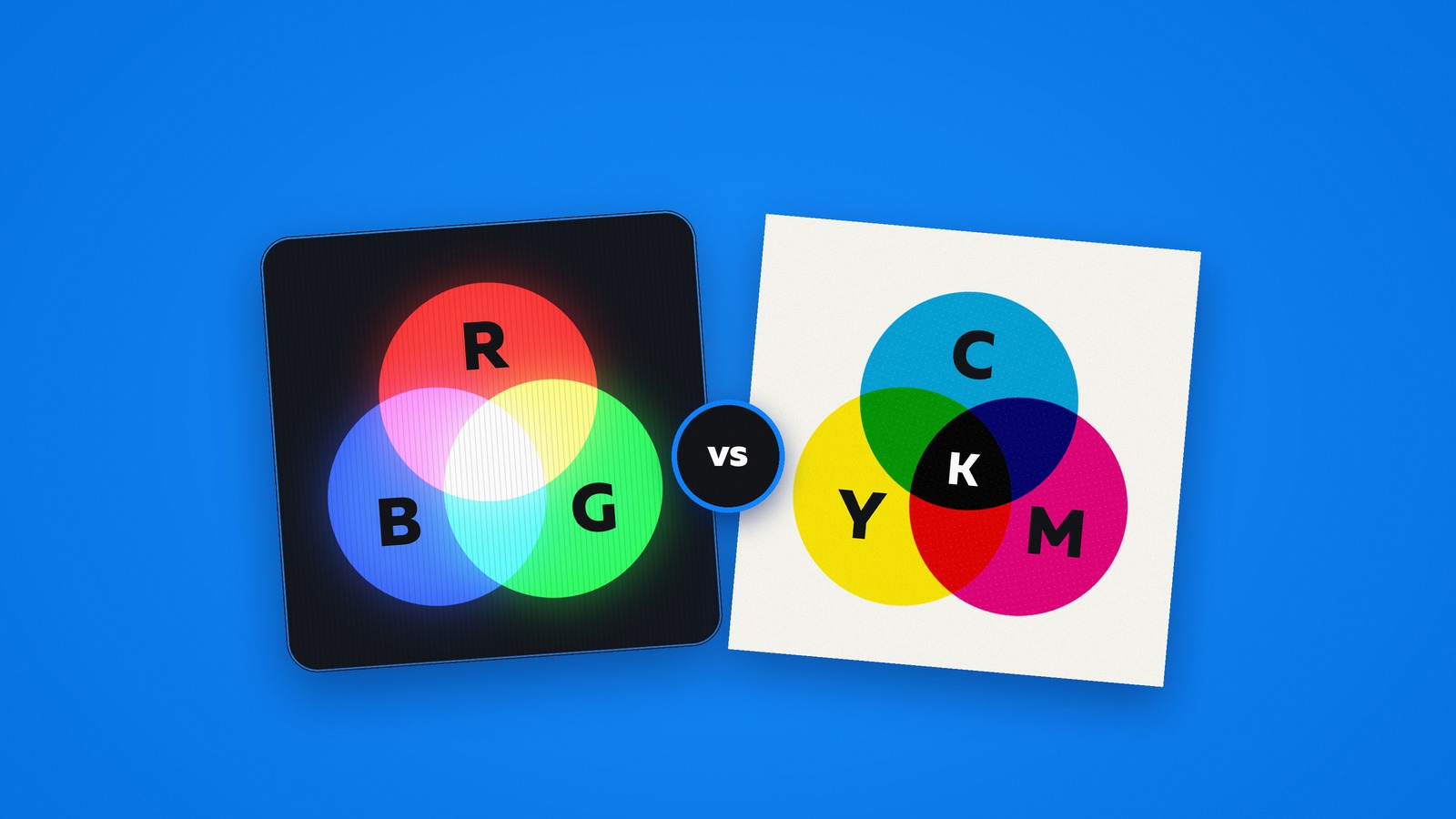
A screen makes color by emitting red, green and blue light. A press makes color by laying cyan, magenta, yellow and black ink on a surface that reflects light back to your eye. The two systems can each produce colors the other cannot, and the range of colors a system can reproduce is called its gamut.
The RGB gamut of a typical display is larger than the CMYK gamut of a press in several regions, especially bright greens, blues and violets. When a color falls outside the printable range, conversion compresses it into the nearest printable one, which can make it look dull or washed out. Nothing is "broken." The software is doing the best it can with ink.
You can see it on a map of color. The dashed outline below is everything a standard sRGB screen can show. The solid outline is what CMYK ink can print on coated board, and the dotted one is uncoated board. Each ring is a brand color on screen, and the solid dot it connects to is where that color lands in print.
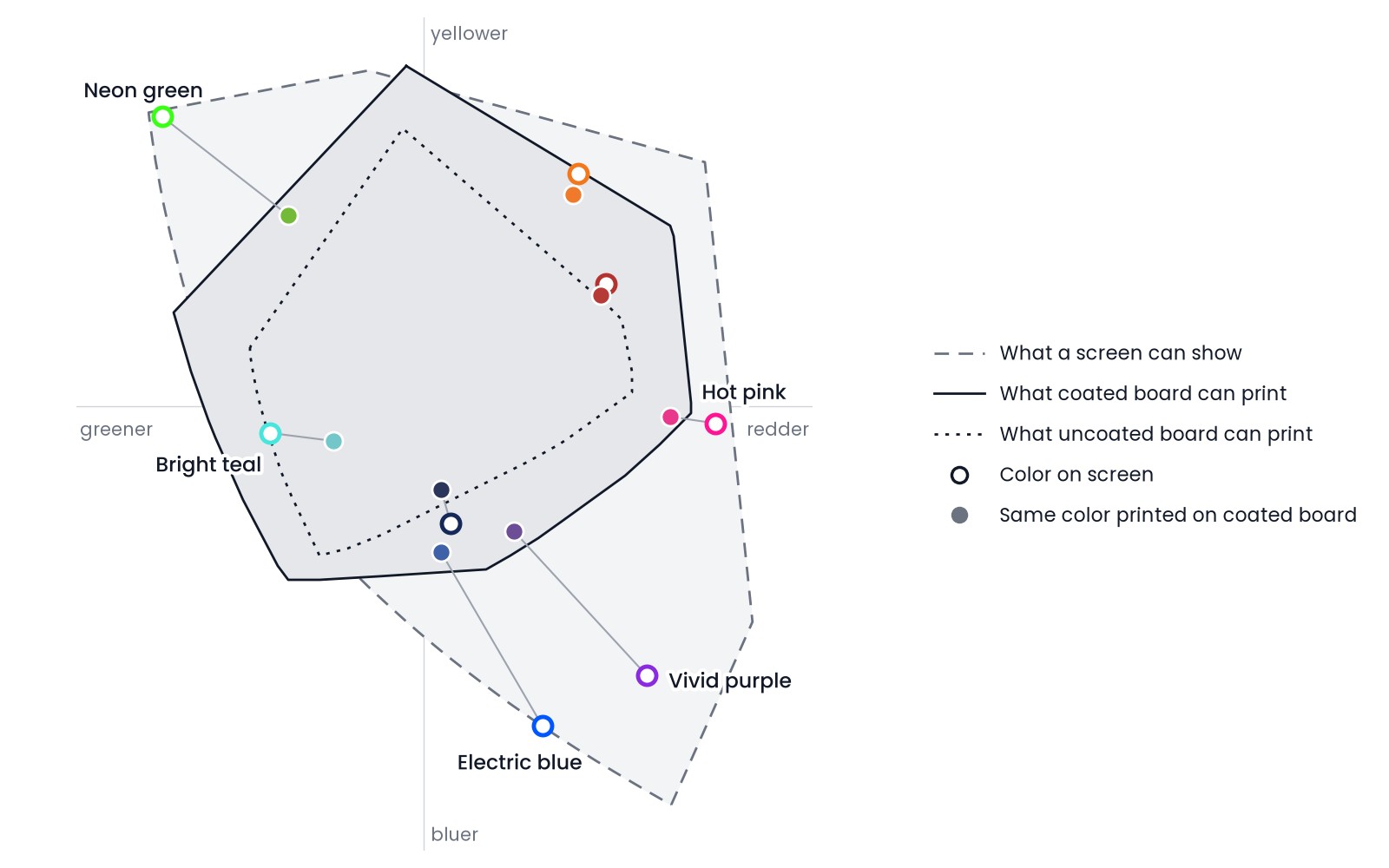
Electric blue, vivid purple, hot pink and neon green sit outside the printable area, so they get pulled inward. Bright teal looks like it should be safe on this map, but it still moves, because the map is flat and hides lightness. That teal is lighter and more saturated than any ink mix can be at the same time, so it prints darker and softer.
Blue is the classic example. The same Colourwise explanation notes that a vivid screen blue can turn darker, greyer or slightly violet in print, because printed blue comes from overlapping cyan and magenta inks that don't behave as ideally as the math assumes. The same page adds that coated stock generally preserves more chroma than uncoated stock, which matches what we measured.
Three reasons a converted color shifts
- Gamut: the original color can't be printed, so it is replaced by the closest printable color.
- Paper and ink: a CMYK profile describes one specific combination of ink and substrate. Conversion needs both the exact RGB source space and the exact CMYK output space, so the same RGB value lands in a different place for a different press and stock.
- Viewing conditions: a backlit monitor is brighter than any printed surface lit by a warehouse, a living room or a retail shelf.
The practical takeaway: you can't make CMYK ink glow, but you can choose colors that print well and verify them before the run.
Which colors are most at risk
To put numbers on it, we ran eight common brand colors through two real print profiles: GRACoL 2006 for coated board and U.S. Sheetfed Uncoated for uncoated board. We used the conversion settings from Step 3 below and scored each shift with Delta E 2000, the measure printers use to compare colors. Under 2 is hard to spot, from 2 to 10 you can see it at a glance, and above 10 the two read as different colors.
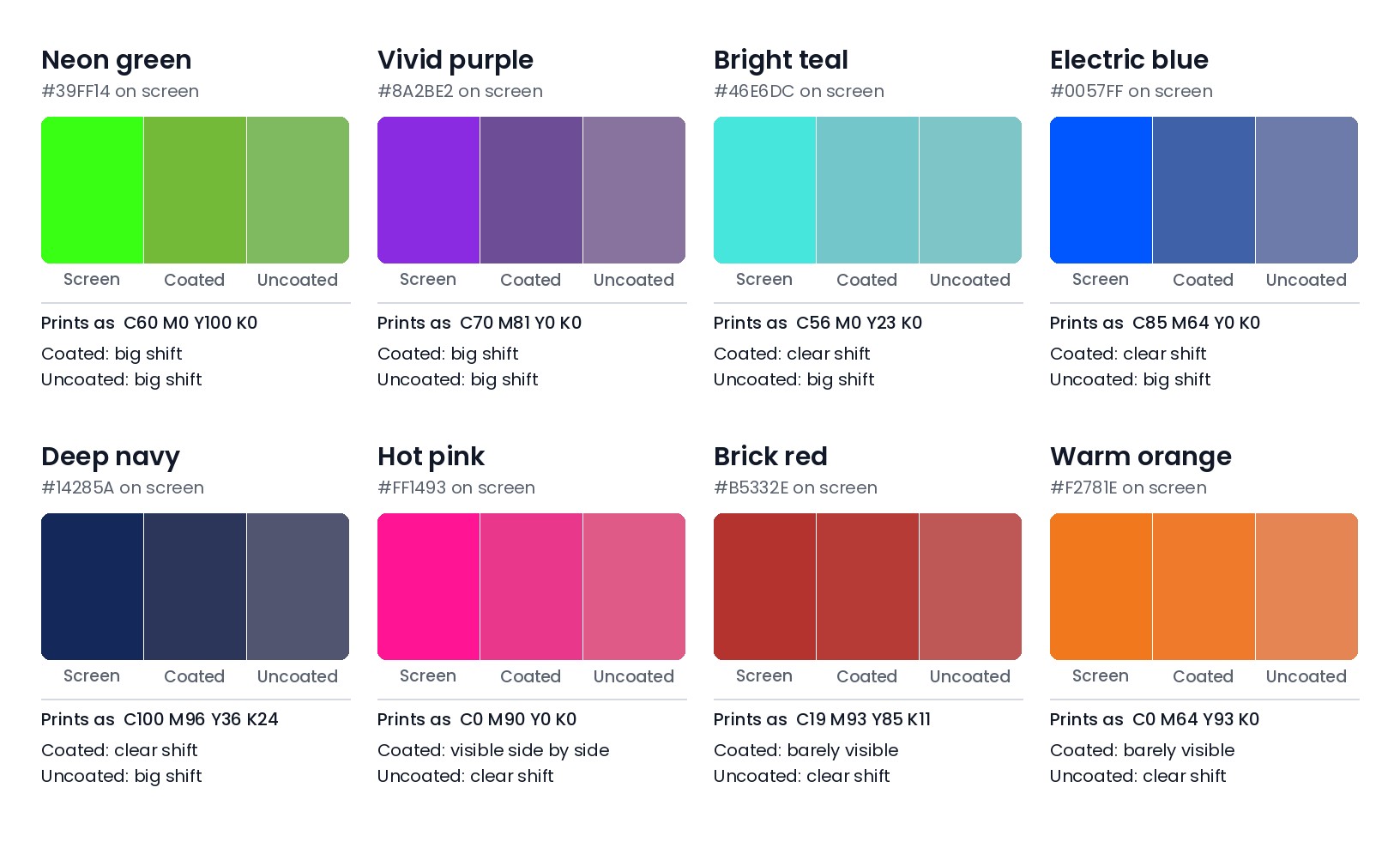
| Color | On screen | Prints as (coated) | Shift on coated | Shift on uncoated |
|---|---|---|---|---|
| Neon green | #39FF14 | C60 M0 Y100 K0 | 16.8 | 18.7 |
| Vivid purple | #8A2BE2 | C70 M81 Y0 K0 | 13.1 | 21.8 |
| Bright teal | #46E6DC | C56 M0 Y23 K0 | 9.8 | 10.8 |
| Electric blue | #0057FF | C85 M64 Y0 K0 | 8.1 | 16.3 |
| Deep navy | #14285A | C100 M96 Y36 K24 | 5.7 | 16.7 |
| Hot pink | #FF1493 | C0 M90 Y0 K0 | 3.4 | 7.5 |
| Brick red | #B5332E | C19 M93 Y85 K11 | 1.9 | 9.8 |
| Warm orange | #F2781E | C0 M64 Y93 K0 | 1.8 | 7.3 |
A few things stand out:
- Warm colors are the safe ones. Orange and brick red barely moved on coated board.
- Cool, saturated colors move the most. Neon green lost most of its glow, purple went dusty, and electric blue turned into a calmer mid blue.
- Uncoated board moves everything. Even deep navy, which held up on coated, went noticeably greyer, because uncoated stock can't print as dark.
If your logo is built around a neon, a vivid purple, a bright teal or an electric blue, test it early. A simple way to triage: open the logo in Photoshop or Illustrator, convert a copy to your target CMYK profile, and put the two versions side by side. If you can barely tell them apart, you're fine. If the CMYK copy looks noticeably flatter, plan for it now rather than at proof stage.
How to set up the conversion before you design
The cleanest workflow avoids converting at the end. Start the packaging file in CMYK, or convert your brand colors once and reuse the converted values everywhere.
Step 1: Ask your printer which CMYK profile to use
There is no single universal "CMYK." Each profile represents a particular paper-and-ink condition. In the U.S., many commercial sheetfed printers work to the GRACoL reference condition. PRINTING United Alliance publishes GRACoL and SWOP 2013 ICC profiles and identifies them as common G7-based reference print conditions, and its 2025 article describes GRACoL 2013 as a widely adopted reference condition for high-quality sheetfed printing, where standardized conditions help proofs and presses line up.
That tells you which profiles are common, but not which one your job needs. Digital presses, flexographic lines and offset sheets can each have their own requirements, so the profile choice should follow the printer's specified condition rather than a generic CMYK setting. If you are weighing production methods, our guides to digital versus offset printing for packaging and digital versus flexo printing explain how each one affects color and cost.
For Packwire orders, start with our artwork guidelines, which cover how to prepare files for custom box printing. If one color is critical to your brand, tell us when you order so prepress knows where to look.
Step 2: Set your working RGB space
If you are starting from RGB art such as a logo from a web designer or a product photo, keep its RGB profile embedded so the conversion knows what the numbers mean. Without a profile, software guesses, and guesses shift colors. sRGB is the safe general-purpose choice for screen assets, and a wider space such as Adobe RGB (1998) retains more color information when your photography uses it, as long as the profile stays embedded.
Step 3: Convert in your software
The menu paths below are Adobe's, since most packaging files pass through one of these three apps.
Photoshop (images and mockups)
- Go to Edit > Convert to Profile.
- Leave the source RGB profile as it is.
- Set the destination to your printer's CMYK profile.
- Under Conversion Options, choose the Adobe (ACE) engine and a rendering intent such as Relative Colorimetric with Black Point Compensation, unless your printer says otherwise.
- Save a new file so your RGB original stays intact.
Illustrator (logos, dielines, vector art)
- Check File > Document Color Mode and set it to CMYK Color.
- Use Edit > Edit Colors > Convert to CMYK for individual selections if you are mixing legacy RGB objects with CMYK ones.
- Re-check any gradients, transparencies and placed images. Linked RGB photos won't convert just because the document mode changed.
InDesign (layouts and multi-panel boxes)
- Build in CMYK from the start where you can.
- Use Preflight to flag RGB objects hiding in the layout.
- Export PDF with the destination set to the printer's CMYK profile, and use a PDF standard your printer requests (PDF/X-4 is common for color-critical work).
One rule applies everywhere: convert once. Going RGB to CMYK to RGB and back again degrades color each time and can't recover what the first conversion discarded.
Soft proof before you trust the number
Soft proofing is the step most people skip, and it is the one that prevents most disappointment. Adobe's documentation explains that soft proofing uses profiles to preview on your monitor how colors will reproduce on a specified output device, and that accuracy depends on your monitor quality, the monitor and output profiles, and the ambient lighting.
In Photoshop:
- Open View > Proof Setup > Custom.
- Choose the printer's CMYK profile as the device to simulate.
- Turn on Simulate Paper Color and Simulate Black Ink if they are offered. They get the preview closer to a real print, though they can make the image look flatter than you expect, which is the point.
- Toggle View > Proof Colors on and off and compare.
- Turn on View > Gamut Warning to highlight the pixels that can't be printed as designed.
A soft proof is an estimate. A cheap uncalibrated laptop screen set to maximum brightness will lie to you in a convincing way. If color matters to your brand, calibrate your display or rely on the printer's proof, and look at the printed sample under neutral daylight-balanced light.
How to fix colors that shift
When the soft proof shows a color going flat, you have four sensible options.
Adjust the color by eye in CMYK
Convert the color, then nudge it in CMYK mode until it looks right in the soft proof. A teal that went soft can often be pulled back toward a cleaner, slightly deeper version that prints well. You will give up some brightness, but you keep the hue your customers recognize.
Choose a print-friendly brand color
If you are still building a brand, choose colors that sit comfortably within CMYK from day one. Start in CMYK, check the result on an actual stock, and then derive your web colors from the print version rather than the other way around. The packaging will match your site better that way, since you've chosen the more limited of the two systems first.
Pick the board with color in mind
The board changes how the same ink looks, which is why our uncoated results moved further than the coated ones. On Packwire mailers, SuperGloss board gives colors the most sheen, and our white board is matte and prints color well. Kraft is its own look: the brown board shows through the ink and mutes every color, so choose it for the natural feel and design for it, rather than expecting it to match a white box. Our guide on how custom packaging influences brand perception covers how those choices read to customers.
Ask about Pantone only when a color truly has to match
Spot colors such as Pantone are premixed inks, so they can reach some shades that process CMYK can't. They also need a different kind of press run, which makes them a big-order option. At Packwire, our 6-color digital press comes very close to many Pantone colors. Exact PMS matching is limited to HD Flexo or litho lamination on larger orders, so it isn't an option for most boxes. For most brands, the better trade is tuning the artwork to the press the job runs on.
What we see on first orders
We see the same pattern in nearly every new brand's first order. The logo was approved on a screen, the box is printed on board, and the first reaction is "it looks different." It does, because it is a different medium. The brands that handle this well do three things: they test their key brand color in CMYK before they finalize the design, they choose the board with the color in mind, and they treat the proof as a real approval step.
That's why our process is built around fast iteration. You design in a 3D configurator, see pricing instantly, and a dedicated account manager reviews your artwork before anything prints. With no setup fees, you can adjust a color and try again without a big penalty. If a teal or a blue is central to your brand, we'd rather you catch the shift at proof stage than discover it on 500 finished mailers.
One honest note from our side: if your brand color is a fluorescent or a very saturated neon, set the expectation internally that print will look softer than your website. Plan the unboxing around contrast, finish and layout, and let the box carry the brand without chasing a screen glow.
Check your file before you order
Color is only part of file prep. Most rejected or delayed packaging files fail on basics, and each one is cheap to fix before upload. Confirm these with your printer, and for a Packwire order, check them against our artwork guidelines:
- Dieline and trim size: use the exact template for the box style, and keep artwork on the correct panels.
- Bleed: extend background color or images past the trim line. Packwire asks for 1/4 inch on every edge. Other printers often ask for 1/8 inch, so follow the template for your box.
- Safe zone: keep logos, text and barcodes inside the margin so folds and cuts don't clip them.
- Image resolution: place raster images at 300 DPI at final printed size, and avoid upscaling small web logos.
- Fonts and links: outline type or embed fonts, and include every linked image.
- Color space: no stray RGB images or objects. Use Preflight to catch them.
- Black: for large black areas, ask the printer how they want it built. Rich black and plain black can look quite different on a big panel.
- Barcodes and QR codes: keep them in strong dark-on-light contrast and test them on a printed proof.
The pre-launch packaging checklist goes further and covers the details beyond color: copy, compliance marks and the unboxing flow.
What this means for your order at Packwire
If you are ready to put the file to work, you can pick a box style, upload your logo and artwork to the 3D configurator, and see the price immediately. At volume, pricing starts at $0.67 per unit for custom mailer boxes, $1.08 per unit for custom shipping boxes, $1.28 per unit for custom folding boxes, and $2.54 per unit for custom rigid boxes. Mailer and shipping boxes are made in the US with minimums from 10 units, and your account manager reviews the artwork before printing, so a color question gets answered while changes are still easy.
Color also shapes how customers respond
Once your print colors are settled, it is worth thinking about what they do for the customer. Palette choice affects attention and trust at the moment of purchase, and there is useful thinking on how color affects conversion for e-commerce brands. If you want to measure whether your packaging investment pays off, the packaging ROI calculator is a good next step.
A quick pre-flight routine you can reuse
Keep this short routine on a sticky note for every new box design:
- Ask the printer for the CMYK profile and file format.
- Build or convert the art once, from a clean RGB original.
- Soft proof with Simulate Paper Color, and check the gamut warning.
- Adjust at-risk colors (teals, blues, violets, neons) by eye in CMYK.
- Run Preflight for RGB leftovers, fonts, links, bleed and resolution.
- Approve the printer's proof, in daylight, next to your previous box or brand sample if you have one.
- Save the final CMYK file with a clear version name, and keep the RGB master for web use.
A worked example: say your brand teal is #46E6DC, it looks great on your Shopify store, and you're ordering 500 white mailers. Convert a copy of the logo to your printer's CMYK profile and you'll get roughly C56 M0 Y23 K0, a slightly deeper, calmer teal. If that's acceptable, approve it. If not, adjust in CMYK until it reads as your brand, and update your style guide with the CMYK values so future orders match. The few minutes you spend there are cheaper than any reprint.
Not sure how your colors will hold up? Send your file through our contact form and we'll take a look before you order.
Sources
- Why blues go dull in CMYK (Colourwise)
- RGB vs. CMYK, or a Primer on Color in the Age of Digital Reproduction (Paprika)
- GRACoL (PRINTING United Alliance)
- Unifying Print Through Standards: The Power of Reference Print Conditions (PRINTING United Alliance)
- Proofing colors in Photoshop (Adobe)